

Peak reporting is a premium feature. If you see a lock icon next to Peaks in your navigation, contact us to enable it.
How it works
Peak reporting has two modes: predefined peaks for major holidays, and custom comparison for any dates you choose.Predefined peaks
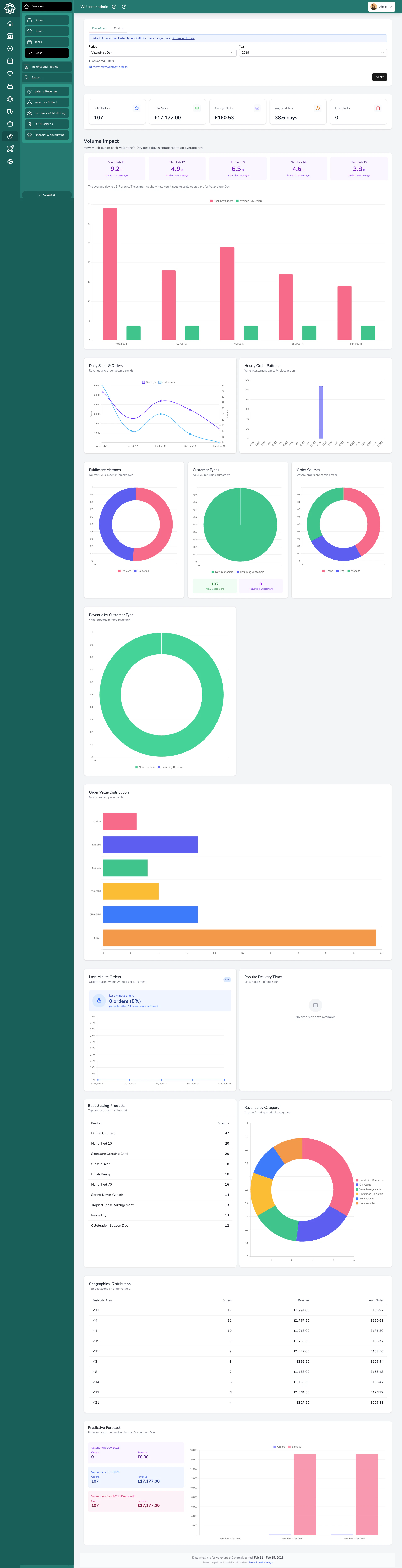
Select a peak period and a year, and the system shows you everything that happened during that window — orders, revenue, products sold, customer behaviour, and more. It also compares each day against your average daily performance for the rest of the year, so you can see exactly how much busier you were. The system tracks six peak periods:| Peak | Typical window |
|---|---|
| Valentine’s Day | 3 days before to 1 day after February 14 |
| Mother’s Day (UK) | 3 days before to 1 day after Mothering Sunday (three weeks before Easter) |
| International Mother’s Day | 3 days before to 1 day after (varies by year) |
| Easter | 3 days before to 1 day after Easter Sunday |
| International Women’s Day | 2 days before to 2 days after March 8 |
| Christmas | 5 days before to 6 days after December 25 |
Custom comparison
Compare any two date ranges side by side. Pick Range A and Range B — the system defaults Range B to the same dates one year earlier, but you can change it to anything. This is useful for comparing:- This December vs last December
- A promotional week vs a normal week
- Any two periods you want to measure against each other
What you’ll see
Summary cards
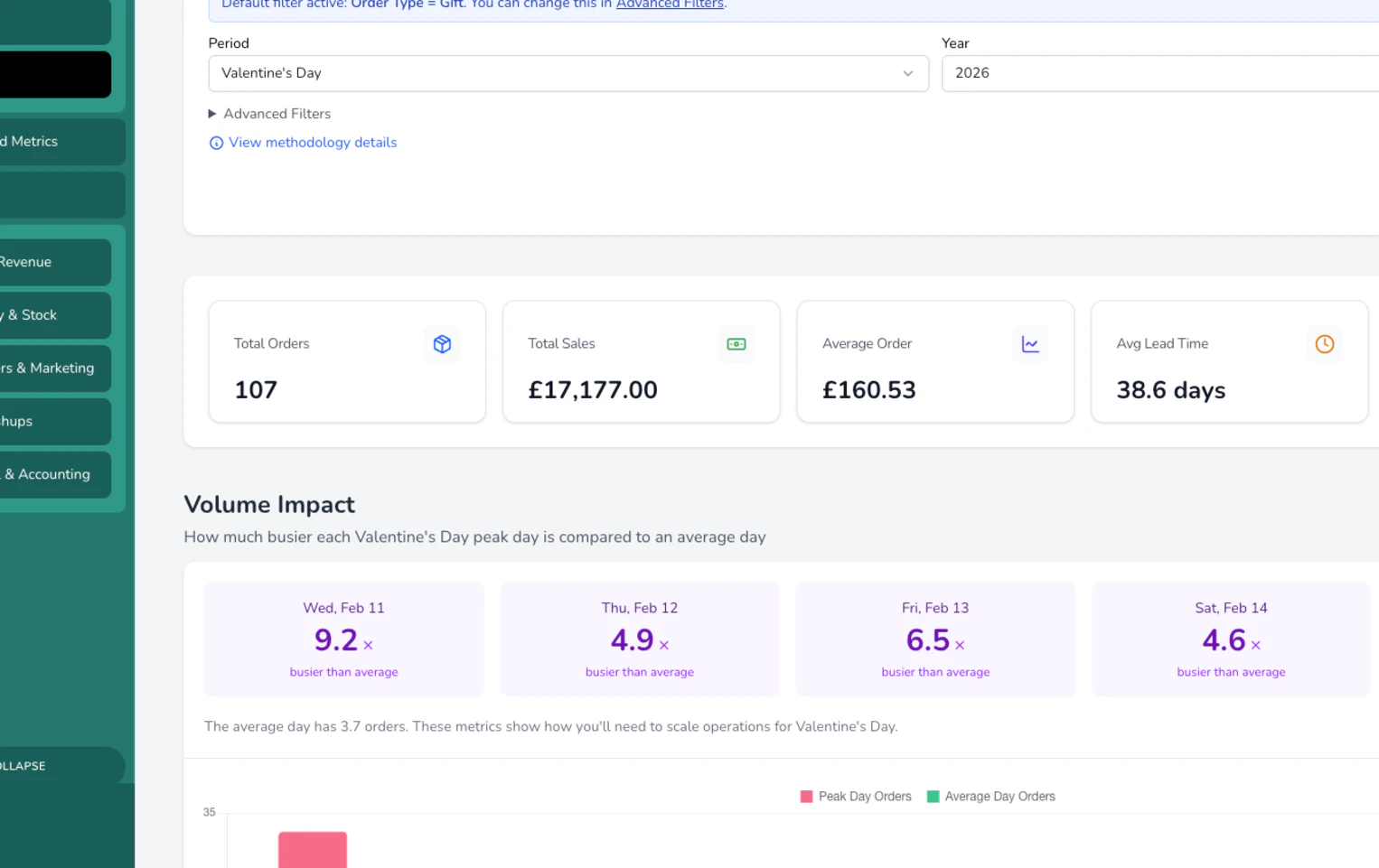
At the top, you get the headline numbers for your selected period:- Total Orders — how many orders you fulfilled
- Total Sales — your revenue for the period
- Average Order Value — how much each customer spent on average
- Average Lead Time — how many days ahead customers placed their orders
- Last-Minute Orders — orders placed less than 24 hours before fulfilment
Volume impact
This shows how much busier each day of the peak was compared to a normal day. You’ll see ratios like “2.5x busier than average” — meaning you handled two and a half times your usual daily volume. The average is calculated from the rest of the year (excluding the peak period itself), so it’s a true comparison.Charts and breakdowns
Peak reporting includes detailed charts across three areas: Overview- Daily Sales & Orders — revenue and volume trends across each day of the peak
- Hourly Order Patterns — when during the day customers are placing orders (useful for staffing)
- Fulfilment Methods — how many went out for delivery vs were collected in-store
- Customer Types — new customers vs returning customers
- Order Sources — where orders came from (website, phone, walk-in, relay)
- Revenue by Customer Type — how much each customer group spent
- Popular Delivery Times — which time slots customers requested most
- Last-Minute Orders — what percentage were placed within 24 hours of fulfilment
- Lead Time Analysis — how far ahead customers ordered (days between order and delivery)
- Best-Selling Products — your top products by quantity during the peak
- Revenue by Category — which product categories performed best
- Order Distribution by Price — how your orders break down across price bands (e.g., £25–50, £50–75, £75–100). Useful for understanding where your sweet spot is and whether customers are trading up
- Geographic Distribution — top postcodes by order volume, revenue, and average order value
Forecasting
For predefined peaks, the system shows a forecast for the next year based on your historical growth. You’ll see three bars side by side:- Previous year — what you did last time
- Current year — what you did this time
- Forecast — what the system projects for next year
Filtering
You can refine your peak analysis with several filters:- Locations — view a specific shop or all locations
- Order Types — filter by gift, funeral, corporate, or event orders (defaults to gift only)
- Order Sources — filter by where orders came from
- Integrations — filter by connected platforms
- Payment Status — include or exclude unpaid orders (paid and partially paid are shown by default)
- POS Orders — include or exclude walk-in till sales
Printing and exporting
- Print — click the print button to get a print-optimised view of the full report, with a header showing the peak name and date range
- Export — in custom comparison mode, export the daily data as a CSV file with summary metrics
How the data is calculated
Peak reporting uses fulfilment dates, not order dates. This means an order placed on February 10 for delivery on February 14 counts as a Valentine’s Day order. Cancelled orders are always excluded. By default, only paid and partially paid orders are included — you can toggle unpaid orders on if needed. The “average day” baseline is calculated from the same year, excluding the peak period itself and applying the same filters you’ve selected.Common questions
Can I compare a peak across more than two years?
Can I compare a peak across more than two years?
The predefined peak view shows one year at a time, but you can switch between years to compare manually. The forecast chart shows three years side by side (previous, current, projected).
What if I don't have data for a peak period?
What if I don't have data for a peak period?
If no orders match the selected period and filters, you’ll see a helpful message with a year selector so you can try a different year.
Why is peak reporting locked?
Why is peak reporting locked?
Peak reporting is a premium feature that needs to be enabled for your account. Contact us at support@digitalflorists.com to get it turned on.
Can I add my own peak periods?
Can I add my own peak periods?
Custom peak periods aren’t available yet, but you can use custom comparison mode to compare any two date ranges you choose.
Why does it use fulfilment dates instead of order dates?
Why does it use fulfilment dates instead of order dates?
Because peak demand is about when flowers need to be ready and delivered, not when the order was placed. A Valentine’s order placed in January still needs to be fulfilled on February 14.
What’s next?
Analytics
Back to the analytics overview.
Insights
Drill into staff, product, and customer performance.
Reports
Download detailed reports for any area of your business.
Exports
Learn how exporting data works.