

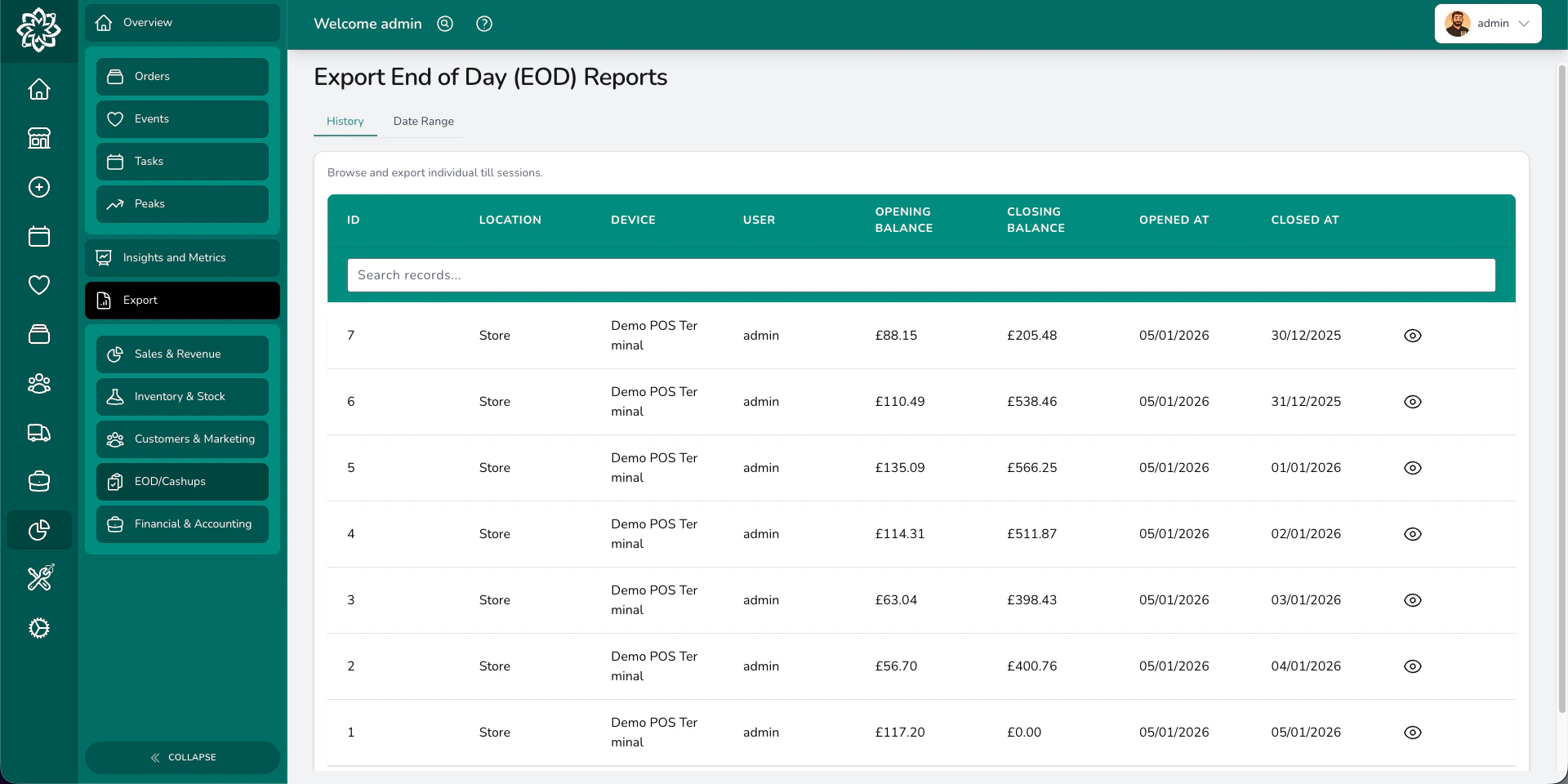
Reviewing past sessions
Go to Analytics > Reports > EOD Reports to see a list of all till sessions. Each row shows the location, device, who opened it, opening and closing balances, and when it ran. Click any session to see its full breakdown — the same seven-tab report you see when closing the till:- Transactions — every sale, refund, and adjustment
- Payments — individual payment records with method, amount, and who processed it
- Tax breakdown — sales grouped by tax rate
- Product breakdown — what sold and how much
- Payment method breakdown — expected vs actual vs variance per method
- User breakdown — sales by team member
- Petty cash — all cash movements with receipts
Date range reports
For a broader view, generate a date range report covering multiple days and devices.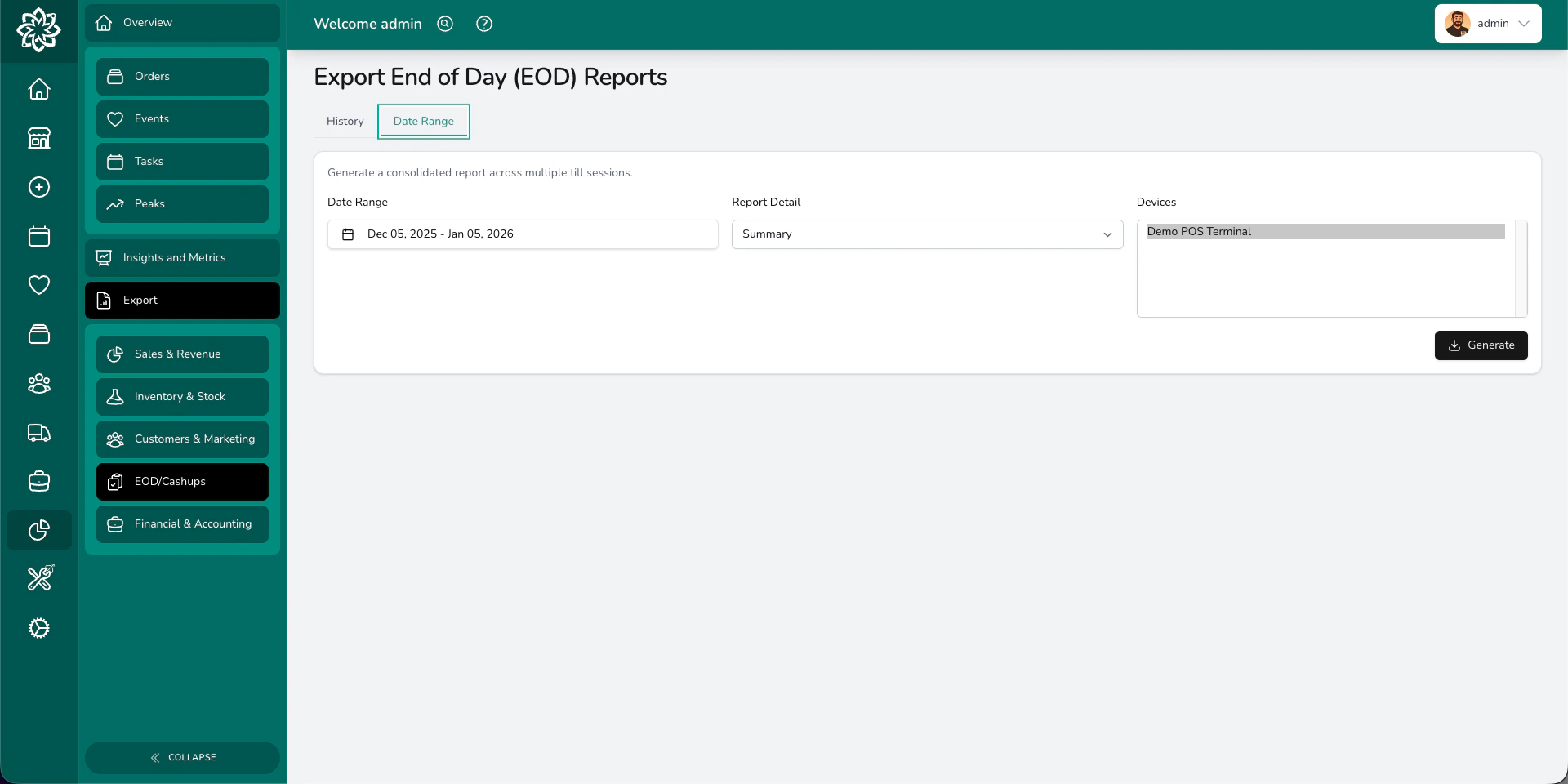
Set your date range
Pick a start and end date — for example, the whole of last week, or the full month.
Choose detail level
Summary gives you the headline numbers per session. Detailed adds per-payment-method breakdowns, individual refunds, and petty cash receipts.
| Sheet | What’s on it |
|---|---|
| Sessions | Every till session with totals, tax breakdown, opening/closing balances, petty cash, and per-payment-method reconciliation |
| Payments Summary | Category totals — orders, events, and adjustments |
| Payments – Orders | Every individual order payment with date, method, amount, and who processed it |
| Payments – Events | Every event payment |
| Payments – Adjustments | Standalone adjustments and transfers |
| Refunds (detailed only) | Every refund with reason, amount, method, and who issued it |
| Petty Cash Receipts (detailed only) | Every petty cash movement with category, reference, note, and receipt link |
This date range report is typically what you’d submit to your accountant for monthly accounts. It includes opening and closing balances, cash expected vs actual, banked amounts, card expected vs actual, and totals from all sources — everything they need to reconcile your till.
Common questions
Who can access end of day reports?
Who can access end of day reports?
End of day reports require the end of day export permission, which is available to Admins and Managers.
Can I see reports across multiple devices?
Can I see reports across multiple devices?
Yes. The date range report lets you select one, several, or all devices. The Excel export includes data from all selected devices.
How far back can I view sessions?
How far back can I view sessions?
All till sessions are kept for as long as your account is active. You can view and export reports from any date.
What’s next?
POS End of Day
Step-by-step guide to closing the till.
Point of Sale
The main POS guide for walk-in sales.
Reports
Generate and download reports across your business.
Financials
Manage invoicing, payments, and accounting.