

How reports work
- Go to Analytics > Export
- Pick a report category (Sales, Inventory, Customers, Financials, or End of Day)
- Choose the specific report you need
- Set your filters (date range, locations, statuses, etc.)
- Click Generate and download the file
Sales & Revenue
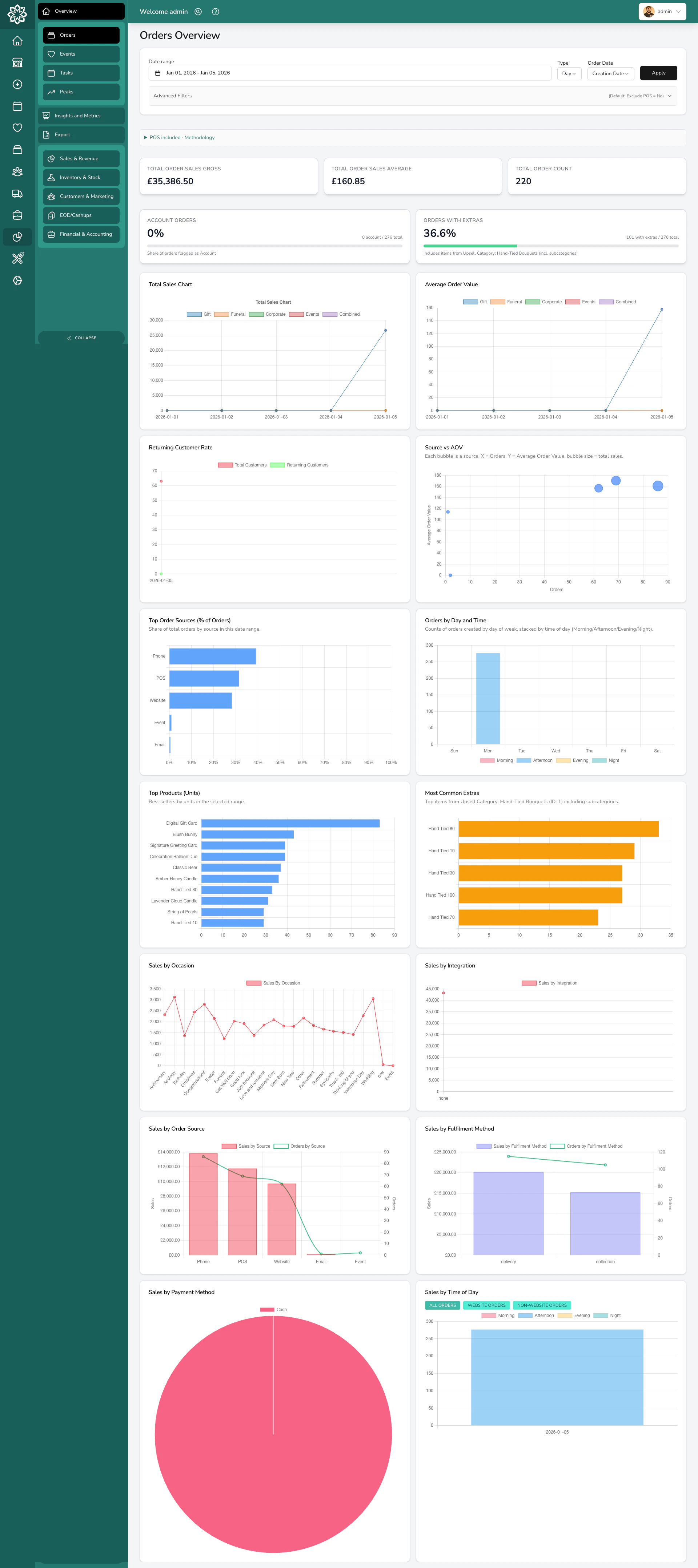
| Report | What it answers |
|---|---|
| Order Sales | How much did we sell? Breaks down by date, occasion, product, category, source, and payment method. The most comprehensive sales report. |
| Customer Orders | What has a specific customer ordered? Shows their full purchase history and order frequency. |
| Orders by Payment Method | How are customers paying? Groups revenue by card, cash, account, etc. |
| Events by Payment Method | How are event customers paying? Same breakdown but for weddings and events. |
- Date type (order date, fulfilment date, or payment date)
- Order and payment status
- Order sources and integrations
- Locations
- Fulfilment methods (delivery, collection, relay)
- Order types (gift, funeral, corporate, event)
- Product categories and occasions
- Individual team members
- Till devices (for POS-only analysis)
Inventory & Stock
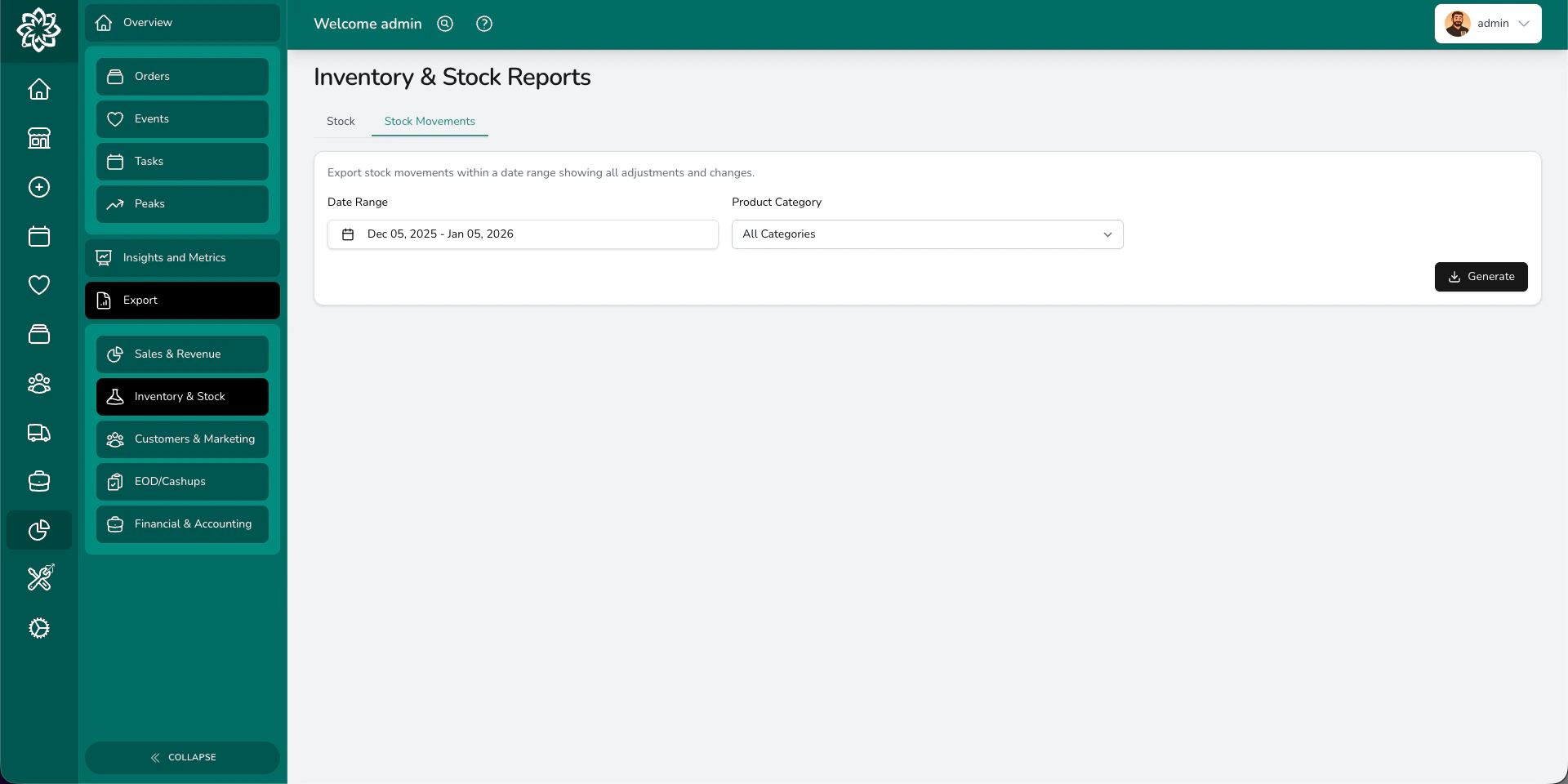
| Report | What it answers |
|---|---|
| Stock | What do we have right now? Current stock levels with cost and retail prices for every product with stock control enabled. |
| Stock Movements | What changed and when? A full history of every stock adjustment — sales, manual corrections, imports, and returns. |
| Ingredient Summary | What do we need to order? Total ingredient demand across your orders, grouped by ingredient. Perfect for sending stem counts to your wholesaler. |
| Ingredient Breakdown | Which orders need which ingredients? A per-order, per-product breakdown of exact ingredient requirements. |
Ingredient Summary and Ingredient Breakdown are only available if you’ve set up ingredient recipes on your product variants.
Customers & Marketing
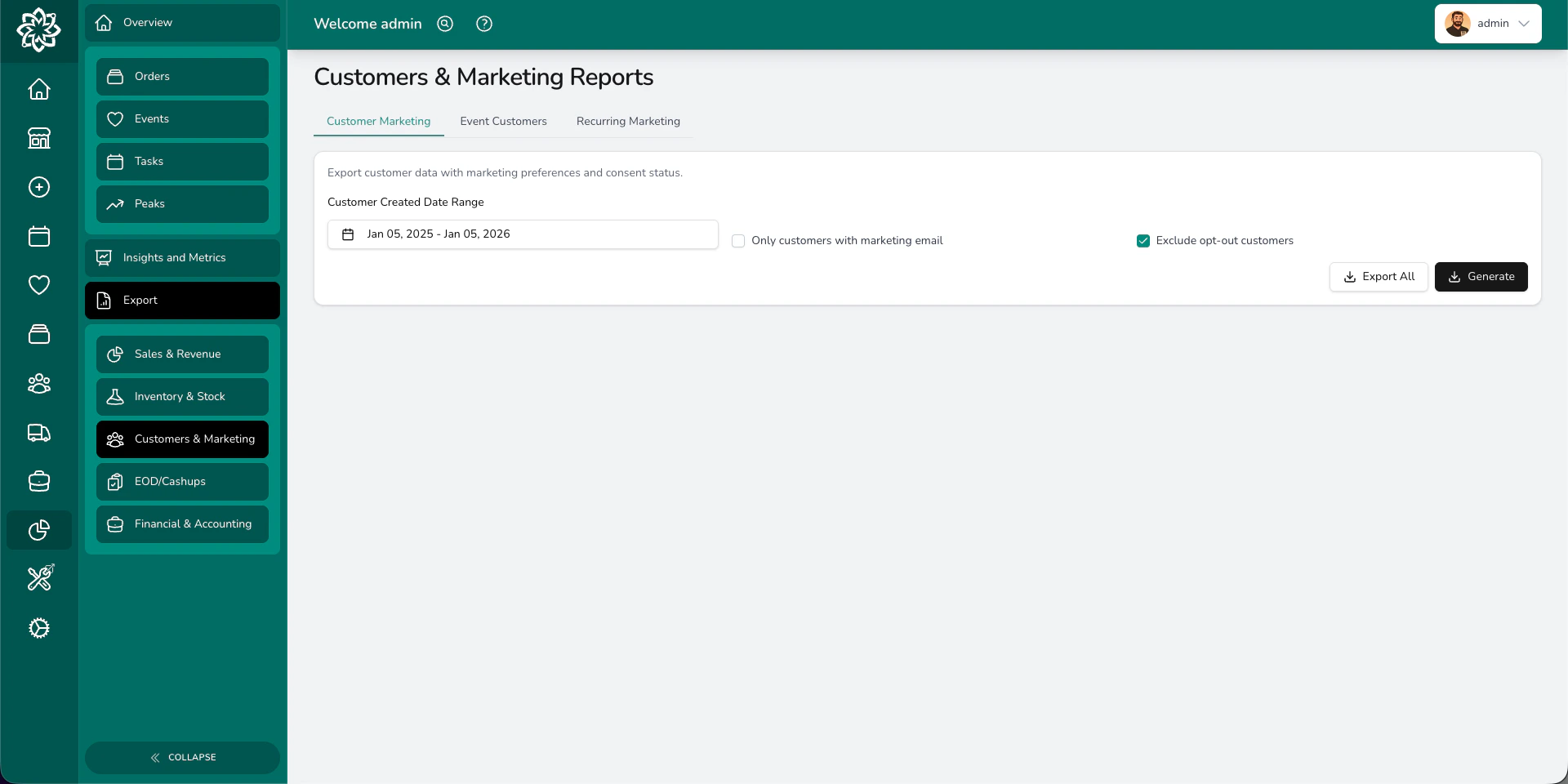
| Report | What it answers |
|---|---|
| Customer Marketing | Who can we contact? Customer names, emails, phone numbers, and marketing consent status. Filter by date or export everyone. |
| Event Customers | Who’s booked events? Customers who’ve had weddings or events, filterable by event date, creation date, or quote acceptance date. |
| Recurring Marketing | Who orders regularly? Customers with recurring or subscription orders, for targeted loyalty campaigns. |
Financials & Accounting
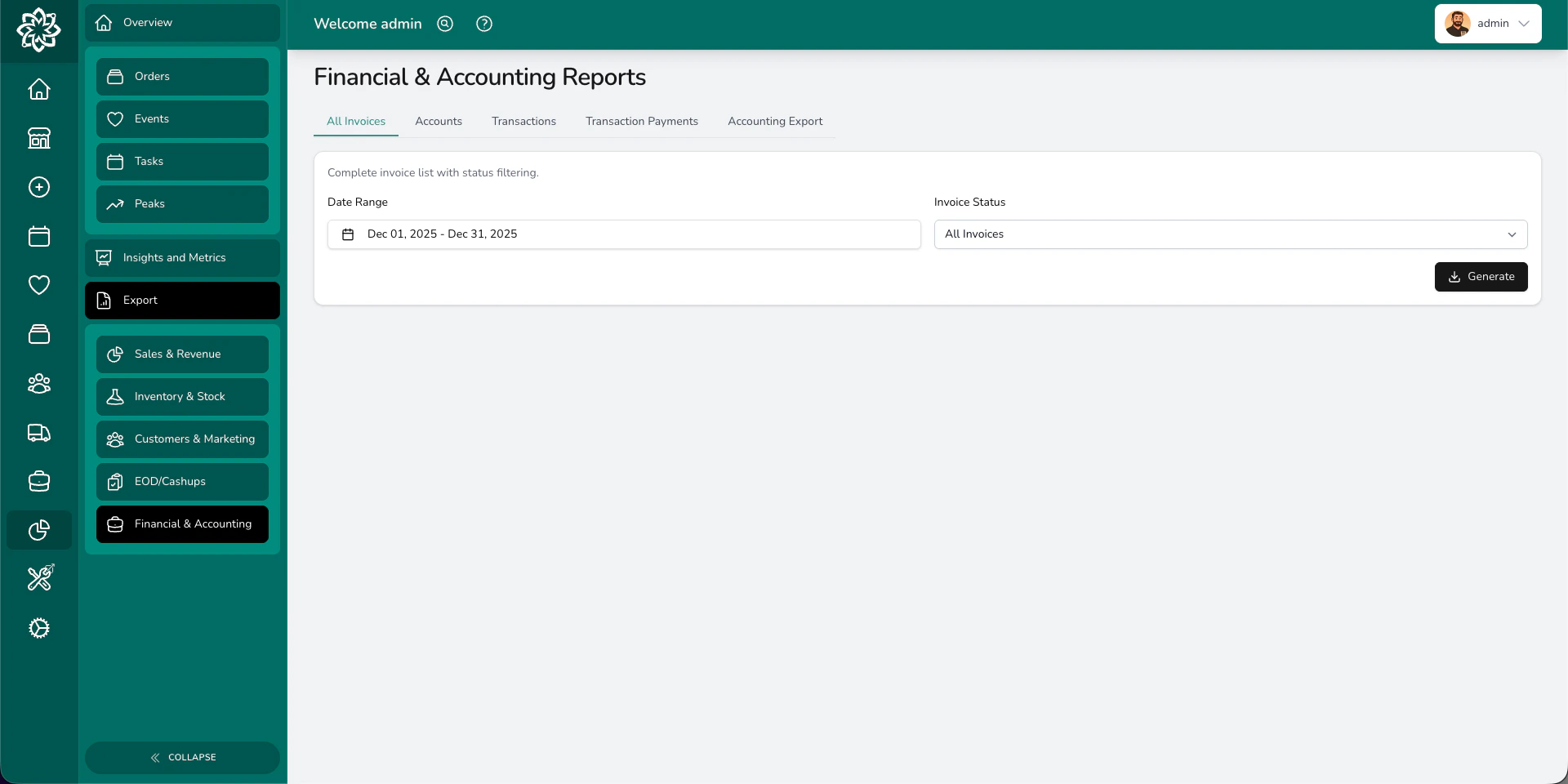
| Report | What it answers |
|---|---|
| All Invoices | What’s been invoiced? Every invoice with status (paid, unpaid, partially paid), amounts, and outstanding balances. |
| Accounts | Who owes us money? Outstanding payments, uninvoiced orders, and aged debt broken down into 0–30, 31–60, 61–90, and 91+ day buckets. |
| Transactions | What transactions happened? Raw transaction data with order and event references, filterable by date type and user. |
| Transaction Payments | How was each payment made? Every individual payment across orders, events, petty cash, and adjustments — with payment method, device, and refund tracking. |
| Accounting Export | How do I get this into my accounting software? Formatted exports for Sage, Xero, or QuickBooks with the right columns, tax codes, and account mappings. |
End of Day
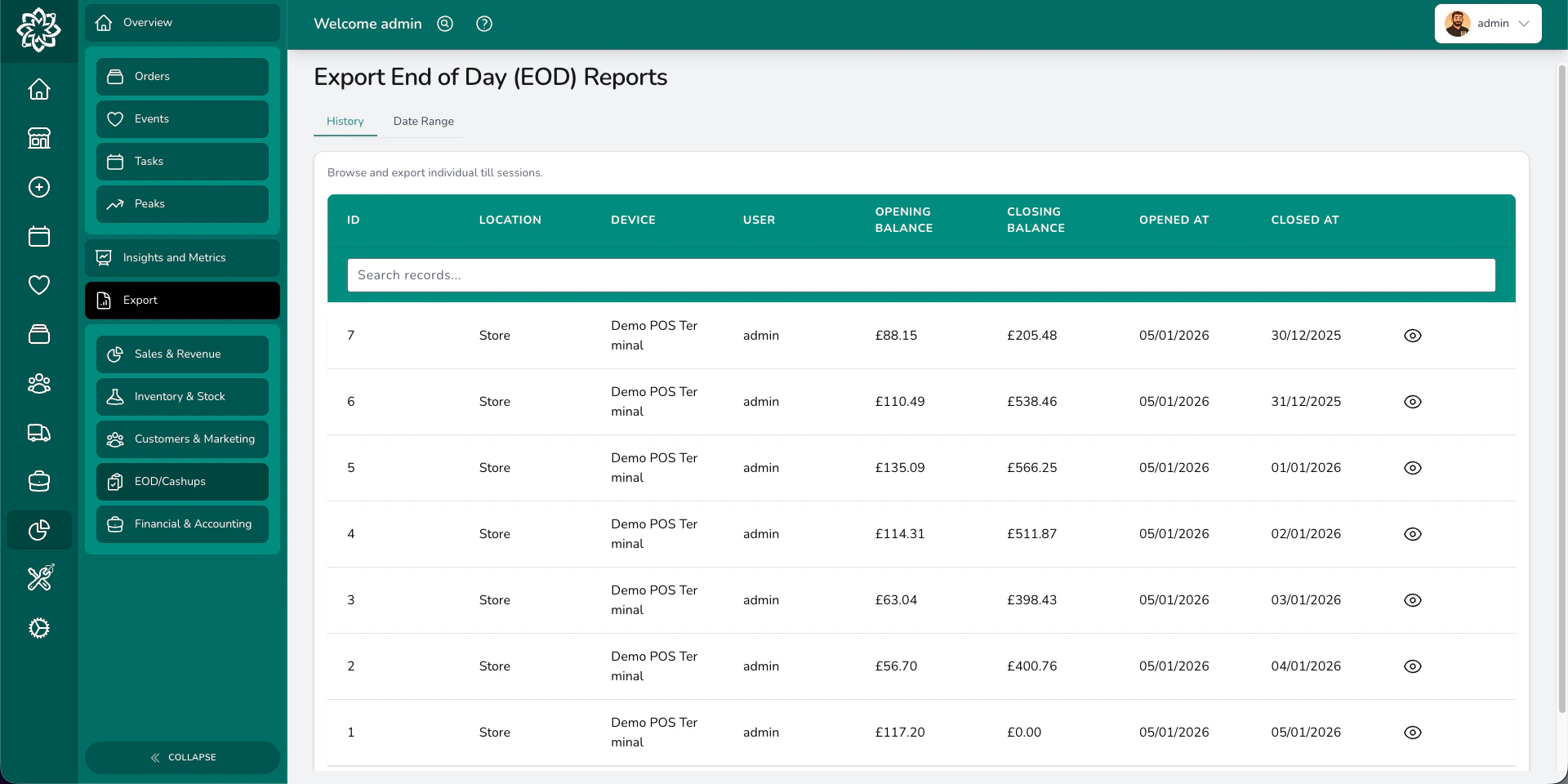
| Report | What it answers |
|---|---|
| History | What happened in each till session? Browse individual sessions with their totals. |
| Date Range | What happened across multiple days? A consolidated report covering all till sessions in a date range, with summary or detailed breakdowns. |
Understanding multi-sheet exports
Many reports download as Excel files with multiple sheets (tabs). Here’s how to read them:- Overview / Summary — the headline numbers and totals
- Detail sheets — the raw data behind the summary (individual orders, payments, products, etc.)
- Info — the filters you applied when generating the report, so you know exactly what data is included
Common questions
What format are the reports in?
What format are the reports in?
Most reports download as XLSX (Excel) files that open in Excel, Google Sheets, and Numbers. Some simpler exports are CSV files. Order and delivery reports can also be exported as PDF.
Is there a limit on how much data I can export?
Is there a limit on how much data I can export?
Invoice reports are capped at 10,000 records per export. For other reports, there’s no hard limit — though very large exports may take a moment to generate.
Who can access reports?
Who can access reports?
Admins and Managers can access all reports. Financial reports and end of day reports require additional permissions that your admin can configure.
Are exports logged?
Are exports logged?
Yes. Every export is logged with who downloaded it, when, and what filters were applied. Your admin can review these in the audit log.
Can I schedule automatic reports?
Can I schedule automatic reports?
Reports are currently generated on demand. For automated financial data, consider connecting to Xero or QuickBooks via Integrations — your data syncs automatically.
What’s next?
Analytics
View your data visually with charts and trends.
Insights
Drill into specific areas like staff or products.
End of Day
Learn about the daily cashup process.
Financials
Manage invoicing, payments, and accounting.