

This page covers features gated by Admin-tier permissions — typically Settings access. Admins have these by default; your administrator can adjust who has them in Settings > Team.
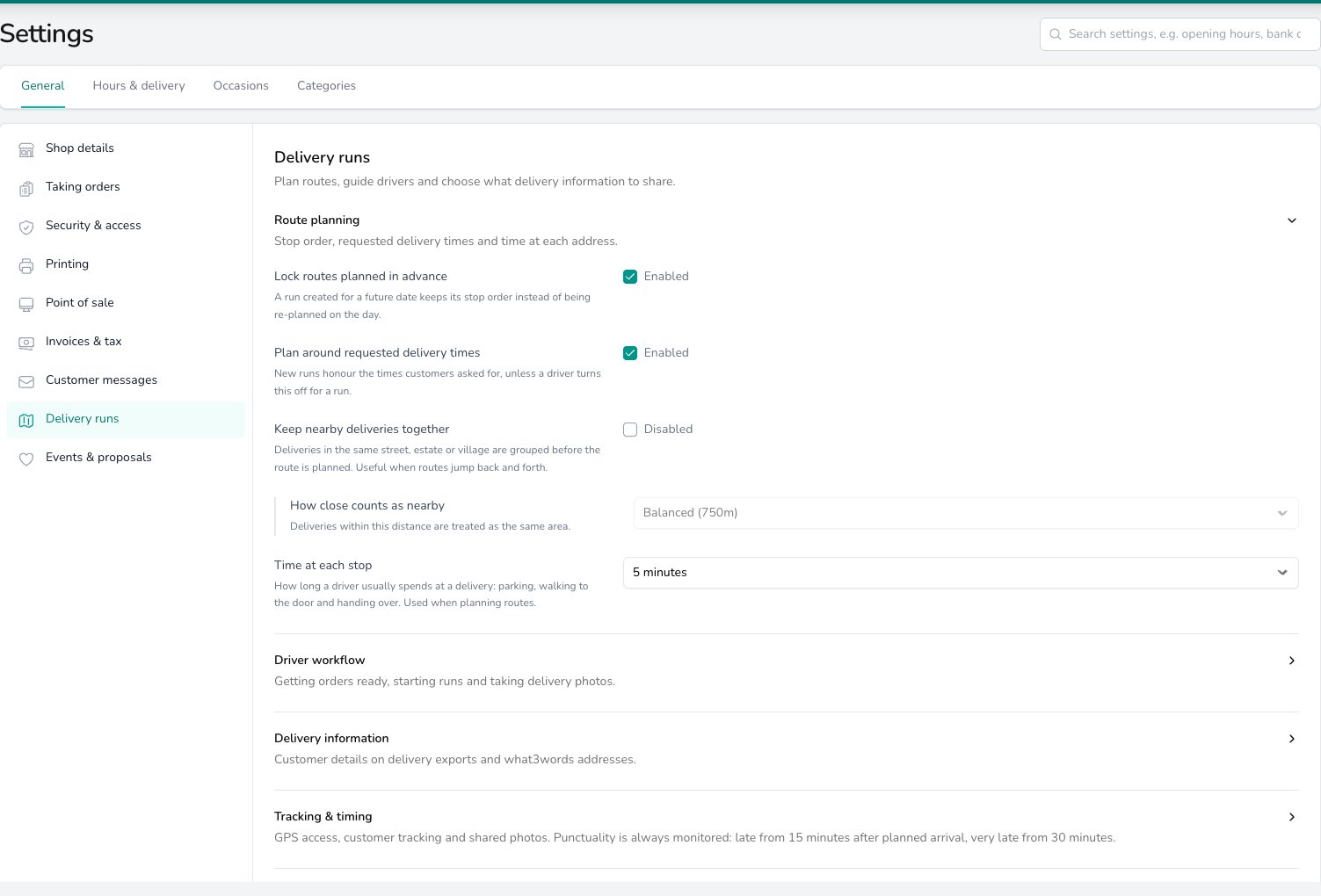
Route planning opens first; click Driver workflow, Delivery information or Tracking & timing beneath it to open the other cards.
Route planning
Leave Lock routes planned in advance on and a run you create for a future date keeps its stop order instead of being re-planned on the day. Turn it off if you want those runs re-planned when the day comes. You can still lock or unlock a single run from its run options. Leave Plan around requested delivery times on and a new run is planned so the driver arrives within the times customers asked for. A driver can turn this off for one run when they start it. Turn the setting off and the option starts unticked on new runs. Switch on Keep nearby deliveries together if your routes jump back and forth across town. How close counts as nearby then appears underneath. Set Time at each stop to how long a driver usually spends at a delivery: parking, walking to the door and handing over. A figure that matches your drivers keeps the estimated arrival honest.Driver workflow
Switch on Mark orders ready when a run is created and every order you put on a new run is marked ready at the same time. Leave it off if you build runs in advance while orders are still being made; they keep their current status until your team marks them ready. Leave Warn about unpaid orders before a run starts on and a driver has to confirm before starting a run that includes unpaid or part-paid orders. Turn it off if your drivers don’t take payment and the warning gets in the way. Leave Photo Required for Deliveries on and a driver must take a photo at each delivery before marking the stop delivered. Turn it off if your photos are taken before the run starts, and Skip photo becomes available to the driver in the Digital Florists App. Switch on Photo Required Before Delivery and a driver must take photos before starting a run. Most shops leave it off. Where each photo ends up is covered under proof-of-delivery photos.Delivery information
Leave Delivery Export Show Customer on and a delivery export includes the customer’s name, phone and address. Switch on Delivery Export Hide Customer Details to leave those off any order that has a separate recipient. Most shops leave both as they find them. Switch on Allow what3words addresses and a What3Words field appears on the address form. Your team can paste a three-word address for a customer whose door is hard to find, and the driver sees it on the stop in the Digital Florists App.Tracking and timing
Switch on Drivers must share their GPS location and a driver has to allow background location access in the Digital Florists App before they can start or continue a run. Leave it off and location sharing is the driver’s choice. Either way, a run whose driver is sharing shows on the live map. Leave Customer tracking links on and your customers can be sent a live link to follow their delivery. Turn it off and every tracking page stops working, including links you have already sent. How the link is sent and what the customer sees is under customer tracking. Switch on Share delivery photos by default and the Include photos in notifications box starts ticked whenever your team adds a photo to an order in the Digital Florists App. Anyone can untick it for a single photo. Leave it off and photos stay on the order for your team unless someone ticks the box. There is nothing to switch on for punctuality: every completed run is checked. You see the results under delivery history.Common questions
Why can't my driver skip the photo?
Why can't my driver skip the photo?
Photo Required for Deliveries is on. Turn it off and Skip photo appears on the stop in the Digital Florists App.
Can each shop have its own delivery run settings?
Can each shop have its own delivery run settings?
No. Everything on this screen is shared by every shop. Opening hours, delivery areas and booking rules are the settings that belong to a shop, under the Hours & delivery tab.
What’s next?
Delivery runs
Create a run, choose its options and send the driver out.
Tracking & Proof of Delivery
The live map, customer tracking links and delivery photos.
Driver app guide
What a driver sees and does in the Digital Florists App.
Delivery history
Completed runs, punctuality and the photos from each stop.